How it works
Your complete guide to Pet Trade Hub
Pet Trade Hub is a marketplace for Idleon pet trades. Set up your inventory and wishlist, browse listings posted by other players, and create your own offers — all in one clean interface.
Trade Listings
Browse offers from other players. Each listing shows exactly which pets they offer and which pets they want in return.
Pet Inventory
Mark which pets you own and how many tradeable copies you have. This powers smart matching and keeps your offers accurate.
Wishlist
Wishlist the pets you want. The dashboard uses your wishlist to surface relevant listings and highlight potential matches automatically.
Step by step
The full workflow
Follow these steps to get the most out of the platform from day one.
Step 1
Set up your Pet Inventory
Your inventory is the foundation of your trading activity. Before creating listings or seeing smart matches, mark which pets you own and how many spare copies you can trade.
- ✓ Check the owned box — Marks the pet as owned. The blue checkmark indicator appears on the tile.
- ✓ Set the tradeable count — Use the stepper to indicate how many copies are available to trade. A green number badge will appear on the tile.
- ✓ Toggle Pet Mart — Click the yellow shop icon on a pet tile to mark it as available in Pet Mart — a daily in-game trading event. The indicator turns solid yellow when active. Pet Mart status resets automatically each day.
- ✓ Review your totals — The Dashboard overview shows owned and tradeable pet counts at a glance.
Tile indicators at a glance
Pet Inventory — live examples from the catalog
These are real pets. The indicators below match what you see in your inventory.
Crystal Cuttlefish
+40% Ballot Bonus Multi (World 2 feature)

Crystal Cuttlefish
Neonscale
+1 new Research Shape, shows up after you get Research LV. 20

Neonscale
Whallamus
10x Class EXP and +10 Legend Talent PTS

Whallamus
Crystal Cuttlefish — 2 tradeable copies (green badge)
Neonscale — owned, not tradeable (checkmark)
Whallamus — not yet owned (no indicator)
Wishlisted pets — how they look
Each of these real pets has the pink heart — identical to what you see on your inventory and in trade listings.
Squirrel
1.50x Kills for Opening Portals and Deathnote

Squirrel
Rift Jocund
2x Kills for Opening Portals and Deathnote

Rift Jocund
Frog
+10% Total Damage

Frog
Mallay
1.30x Drop Rate

Mallay
Pink heart = wishlisted
This badge appears on any tile where the pet is in your wishlist — in inventory, listing cards, and dashboard matches.
Step 2
Build your Wishlist
The wishlist tells the platform which pets you are actively looking for. It is not just a personal note — it directly powers the matching system and your browse experience.
- ✓ Visit Pet Inventory — Each pet tile has a heart button. Click it to wishlist or un-wishlist a pet. No limit on how many you add.
- ✓ Wishlist while browsing listings — You can also wishlist a pet directly from any listing page where the pet appears.
- ✓ Check Dashboard matches — Once you have wishlisted pets, the Dashboard will surface listings that offer them automatically.
Step 3
Browse Trade Listings
The Trade Listings page shows all active offers from every player on the platform. Each listing is structured to make the trade immediately clear: what they offer, what they want.
- ✓ "Offers" section — The pets this player is willing to give. Pets from your wishlist are highlighted with a pink heart badge.
- ✓ "Wants" section — The pets this player is looking for. If you have tradeable copies, a green count badge appears on the tile.
- ✓ Rarity color borders — Each pet frame uses a color-coded border matching the rarity — no need to read labels.
- ✓ Filters that stay in the URL — Filter by pet name, rarity, server, or player. The URL updates so you can share or bookmark your exact view.
- ✓ Pet tooltip on hover — Hover or focus any pet tile to see its name, set, rarity, and your personal status.
Trade listing card — real pet tiles
Example trade listing
by AnotherPlayer · Global
Offers
3 petsBalloonfish
4x Masterclass drops (Bones/Dust/Tachyon)

Balloonfish
Flying Worm
+30 Talent Points for all classes

Flying Worm
Glunko The Massive
3x Total Damage, 5x Class EXP gain, 1.5x Drop Rate

Glunko The Massive
Pink heart = in your wishlist
Wants
3 petsBubba the Seal
+30% Gallery Bonus Multi (World 7 feature)

Bubba the Seal
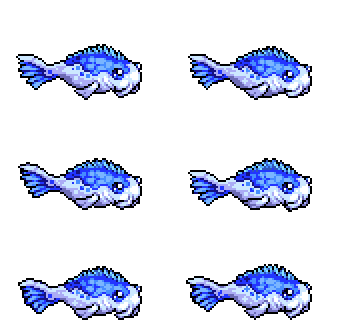
Koi Fish
100x Gaming Bits gained (World 5 feature)
Koi Fish
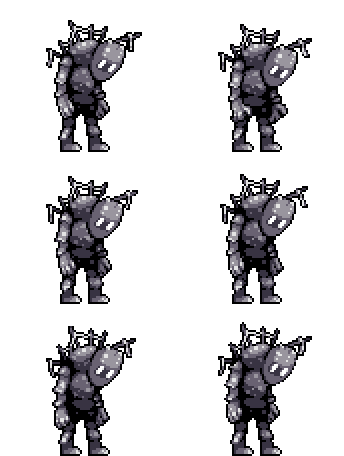
Rift Stalker
+10 Research PTS, +20% Research AFK Gains, 2x Research EXP Gain, and +1 Magnifier
Rift Stalker
Green number = your tradeable copies
Click a listing to open its detail page and see contact info.
Create listing — what to fill in
Each account starts with a limited number of trade charges that refill automatically over time.
Example — pets selectable as offers (real catalog pets shown):
Balloonfish
4x Masterclass drops (Bones/Dust/Tachyon)
Balloonfish
Flying Worm
+30 Talent Points for all classes
Flying Worm
Glunko The Massive
3x Total Damage, 5x Class EXP gain, 1.5x Drop Rate
Glunko The Massive
Step 4
Create your own Trade Listing
Once your inventory is set up, you can post your own trade offers. A listing clearly states what you give and what you want, and stays live until you close it, complete it, or it expires.
- ✓ Go to Dashboard → Create listing — The button is always visible in the dashboard header.
- ✓ Pick your offer pets — Only pets with a tradeable count appear in the offer selector.
- ✓ Pick what you want — Add multiple wanted pets to reach more potential matches.
- ✓ Publish immediately — Your listing goes live as soon as you submit and appears in search results right away.
Step 5
Use the Dashboard
The Dashboard is your command center. After logging in, it gives you a live snapshot of your trading activity and surfaces the most relevant next actions.
- ✓ Overview — Active, paused, and expired listings at a glance. Also shows trade charges, trust score, and pet counts.
- ✓ Best matched trades — Listings from other players that match your wishlist and inventory are ranked and shown here automatically.
- ✓ My Trades — Manage all your listings — edit, pause, duplicate, or mark them as completed.
- ✓ Pet Inventory — Update owned and tradeable status for the full pet catalog.
- ✓ Notifications — Get notified when someone interacts with your listing or a trade needs your confirmation.
- ✓ Profile Settings — Set your display name, contact info (Discord/Reddit), and server.
Dashboard overview snapshot
Active trades
2
Verified trades
1
Listing views
47
Owned pets
18
Tradeable pets
5
Matches found
3
Trade charges
Available2/2
Charges are fully recovered.
Your real numbers will appear here after you post listings and update your inventory.
Trade lifecycle — from listing to completion
Your listing is live and visible in search results.
Another player marks that a trade happened with you.
You confirm or dispute the claim in Dashboard → My Trades.
Both sides confirmed — the trade is recorded in your history.
Listing is closed, either by you or after the active window.
Step 6
Manage and follow trades
After trading in-game, both parties use the platform to confirm the exchange. This keeps your history accurate and builds your trust score over time.
- ✓ Find your trade partner — Contact details (Discord/Reddit) appear on each listing's detail page when you are logged in.
- ✓ Trade in-game — Complete the actual pet exchange inside Idleon as normal.
- ✓ Submit a completion claim — Click "I completed this trade" on the listing. The other player will be asked to confirm.
- ✓ Both parties confirm — Once confirmed, the trade is marked verified and recorded in your trade history.
- ✓ Review trade history — Dashboard → Overview shows all completed trades with what you gave and received.
Tips & best practices
Get better results faster
Fill your inventory first
Smart matching only works well when your owned and tradeable data is complete. Spend 5 minutes going through the catalog before posting your first listing.
Wishlist more, match more
The more pets you wishlist, the broader the matching net. Do not just wishlist your top pick — add the full set you are targeting.
List multiple wanted pets
When creating a listing, add several pets to the wanted section. Flexible listings are easier to match and get more attention.
Complete your profile
Add your Discord or Reddit handle in Profile Settings. Traders can only contact you if this information is available on your listings.
Confirm trades to build trust
Always confirm completed trades on the platform. Your trust score improves with each verified trade and makes your listings more credible.
Use Pet Mart for daily events
Mark eligible pets with the yellow shop icon in your inventory to flag them as available during Pet Mart. The status resets automatically each day, so re-mark your pets before each event.
Keep listings up to date
Close or update listings when your inventory changes. Stale listings mislead other traders and lower the overall quality of the marketplace.
Ready to start?
Join Pet Trade Hub today
Create a free account, set up your inventory and wishlist, and start browsing or posting listings in a few minutes.
Already have an account? Sign in